
A tour of Curricle with sample trips, screen by screen
See how a family's trips look in Curricle, from the home screen to sharing and ratings, with tips for getting the most out of each screen.
Last updated October 19, 2026
The screens below come from Curricle’s sample account: the Smith family, with an anniversary trip to Charleston under way, a Napa Valley weekend and Lisbon coming up, and a past getaway to Asheville. Each one shows what you’ll see and how to make the most of it.
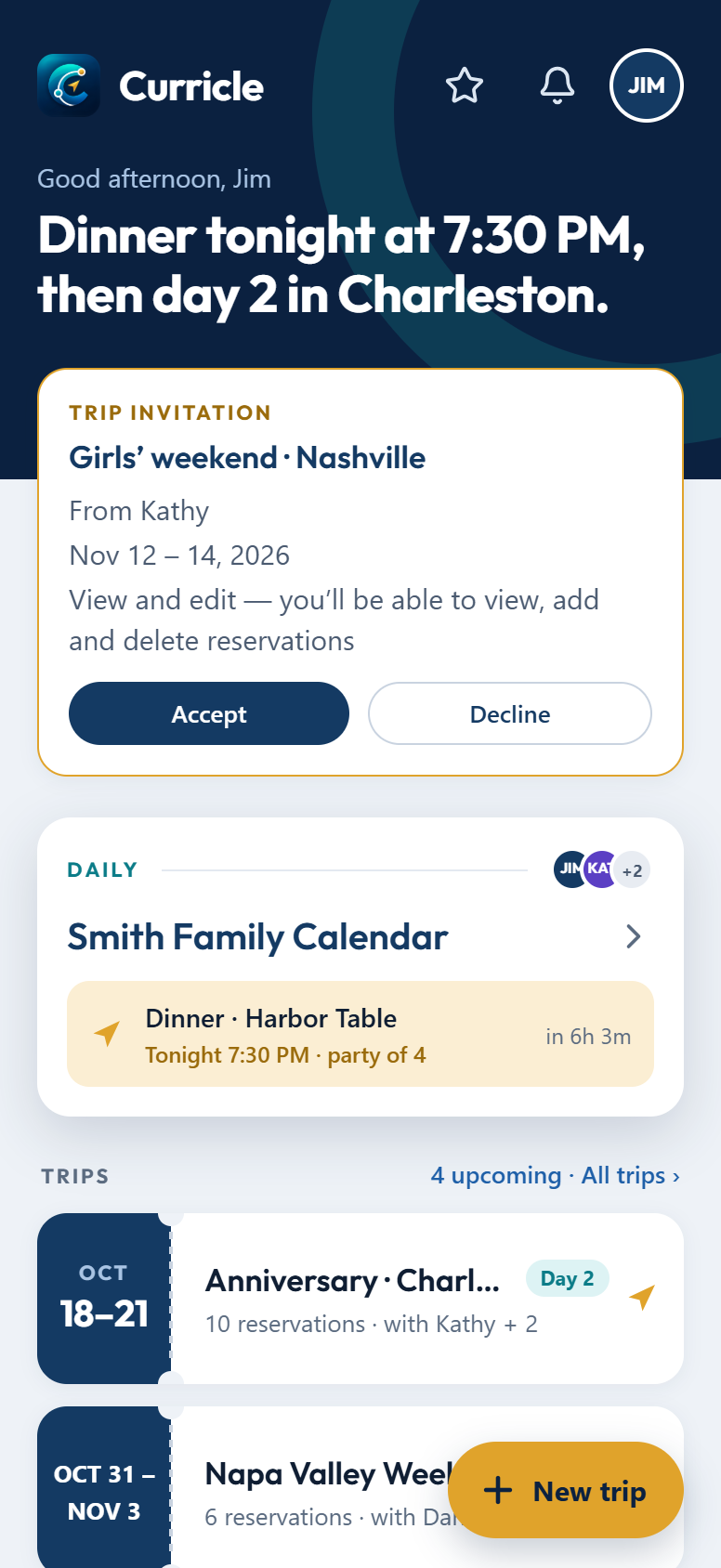
1. Home: what’s next, at a glance
The line at the top says what’s coming, here dinner tonight and day 2 in Charleston. Below it:
- Invitations wait at the top. Accept and the trip joins your list; decline and it’s gone.
- Your daily calendar shows the next thing on it and how long until it starts.
- Trips look like tickets, with the dates, how many reservations, who’s along, and a Day 2 badge while you’re on the trip.
Tip: tap New trip before you book anything. The trip gets its own forwarding address straight away, so confirmations land in the right place from the first booking.
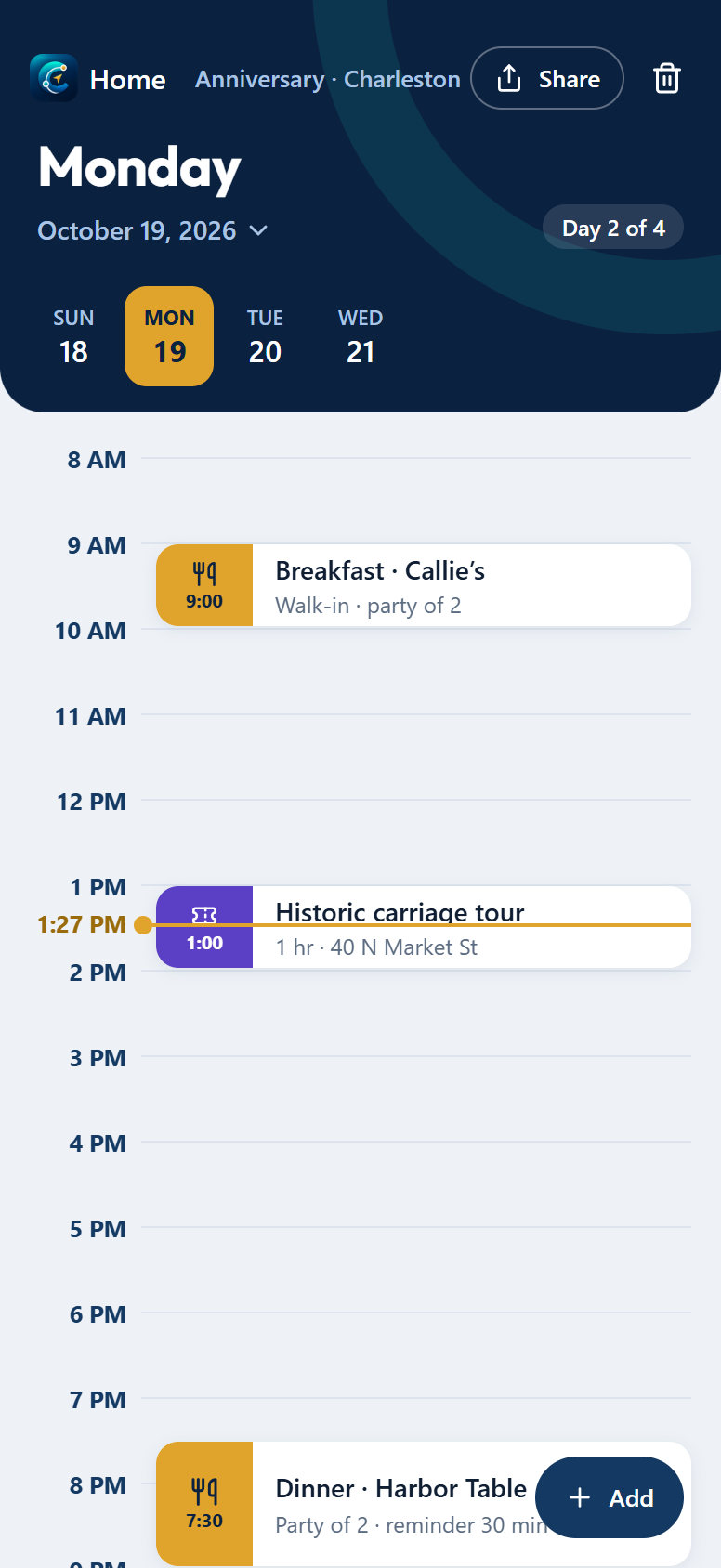
2. A trip, one day at a time
Each day of the trip is a timeline. Colors tell flights, hotels, meals, tours and events apart, and the gold line marks the current time.
- Tap a day in the strip to jump to it; Day 2 of 4 keeps you oriented.
- Share invites people and shows the trip’s forwarding address. Add enters something by hand.
- Home, top left, always takes you back.
Tip: open Curricle during a trip and it goes straight to today on that trip.
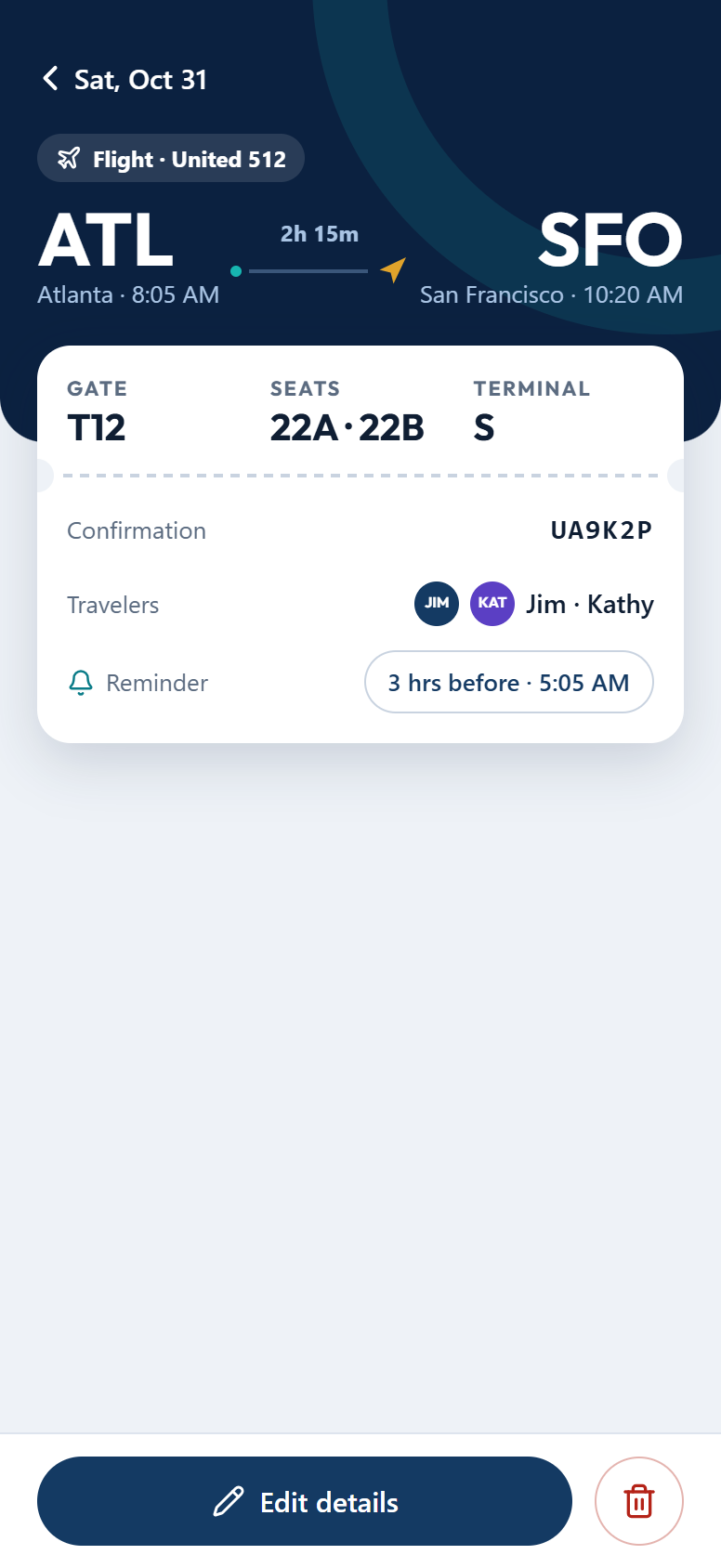
3. Every reservation has the details you need
Tap anything on the calendar to open it. A flight reads like a boarding pass: the route and times, gate, seats and terminal, and the confirmation code to read out at the counter.
- Travelers shows who the reservation is for.
- Reminder shows when you’ll be notified. Tap it to change the timing for this one reservation.
- Tap an address on a hotel, restaurant or tour to get directions.
Tip: if a forwarded email changes a booking you already have, such as a new flight time, Curricle asks once whether to remove the earlier one.
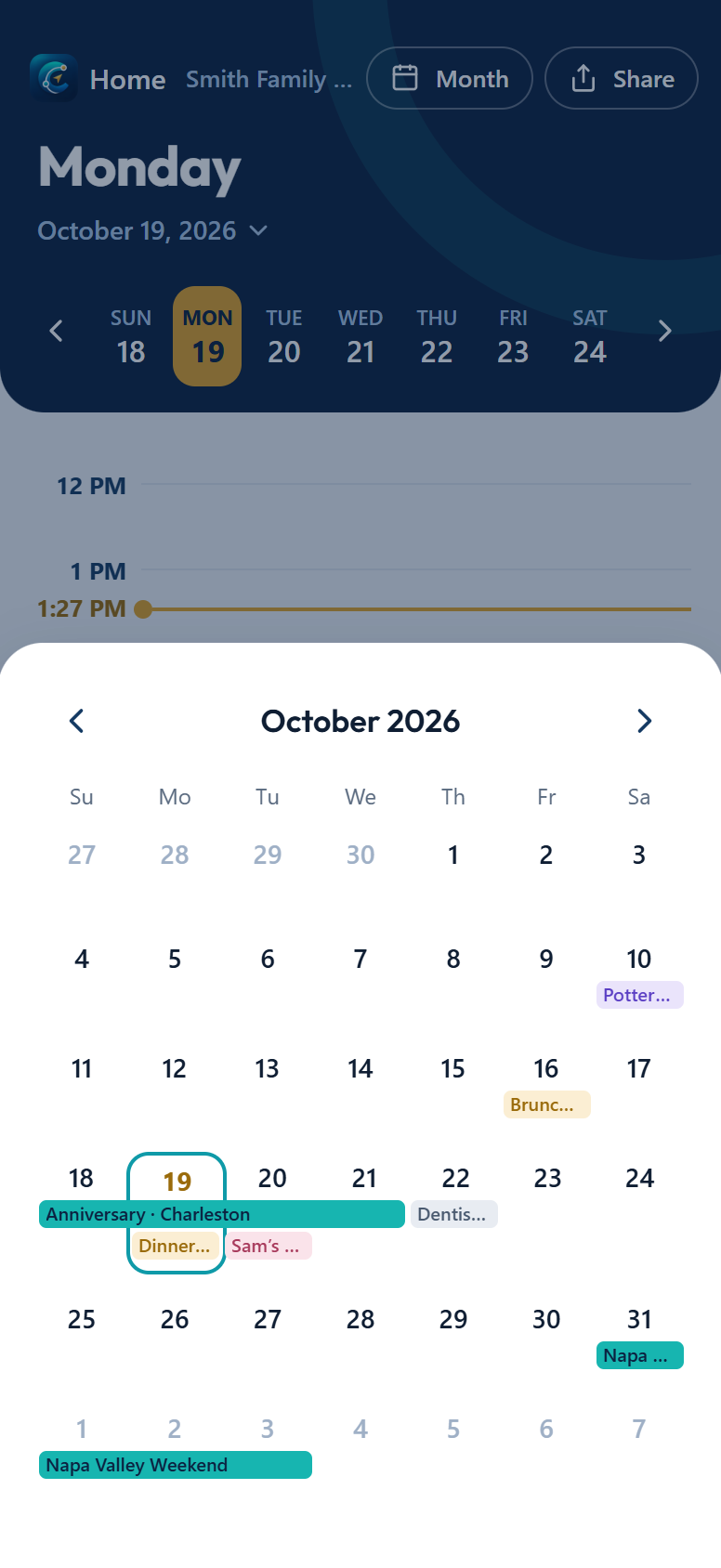
4. The month at a glance
On your daily calendar, Month shows the whole month. Trips appear as bars across their days, and everything else is tinted by type. A dashed gold bar is a trip you’ve been invited to but haven’t accepted yet.
Tap any day to go to it, or a trip bar to open the trip.
Tip: when today has nothing on it, your daily calendar opens on the month view by itself.
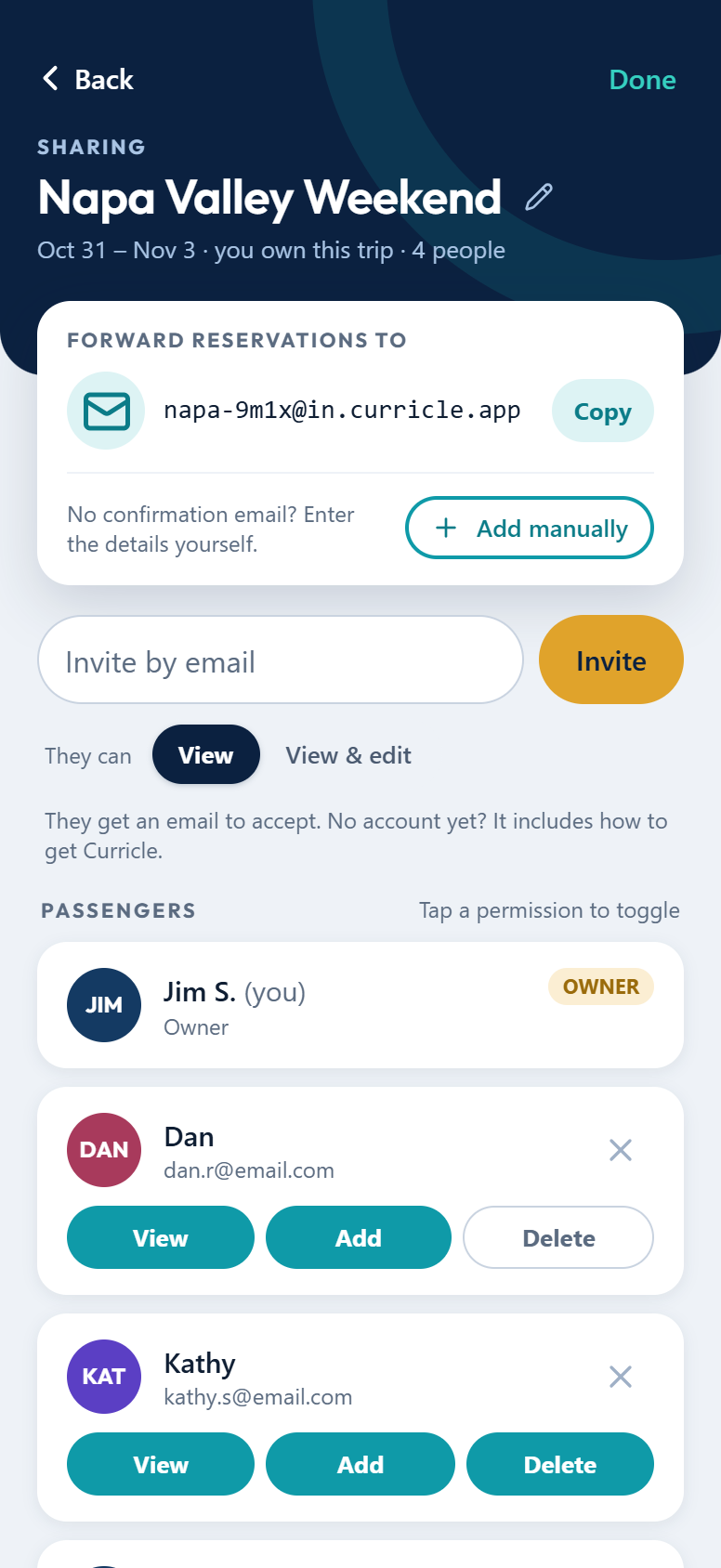
5. Share the trip and its address
Every trip has its own address, like napa-9m1x@in.curricle.app. Anything forwarded to it lands on that trip.
- Copy the address and save it as a contact, such as “Curricle – Napa”, so your email app suggests it.
- Invite by email with View or View & edit. People without the app get an email that explains how to join.
- Tap View, Add or Delete under each person to change what they can do.
Tip: give Add to everyone who books something. They can forward their own confirmations, and the whole group sees them.
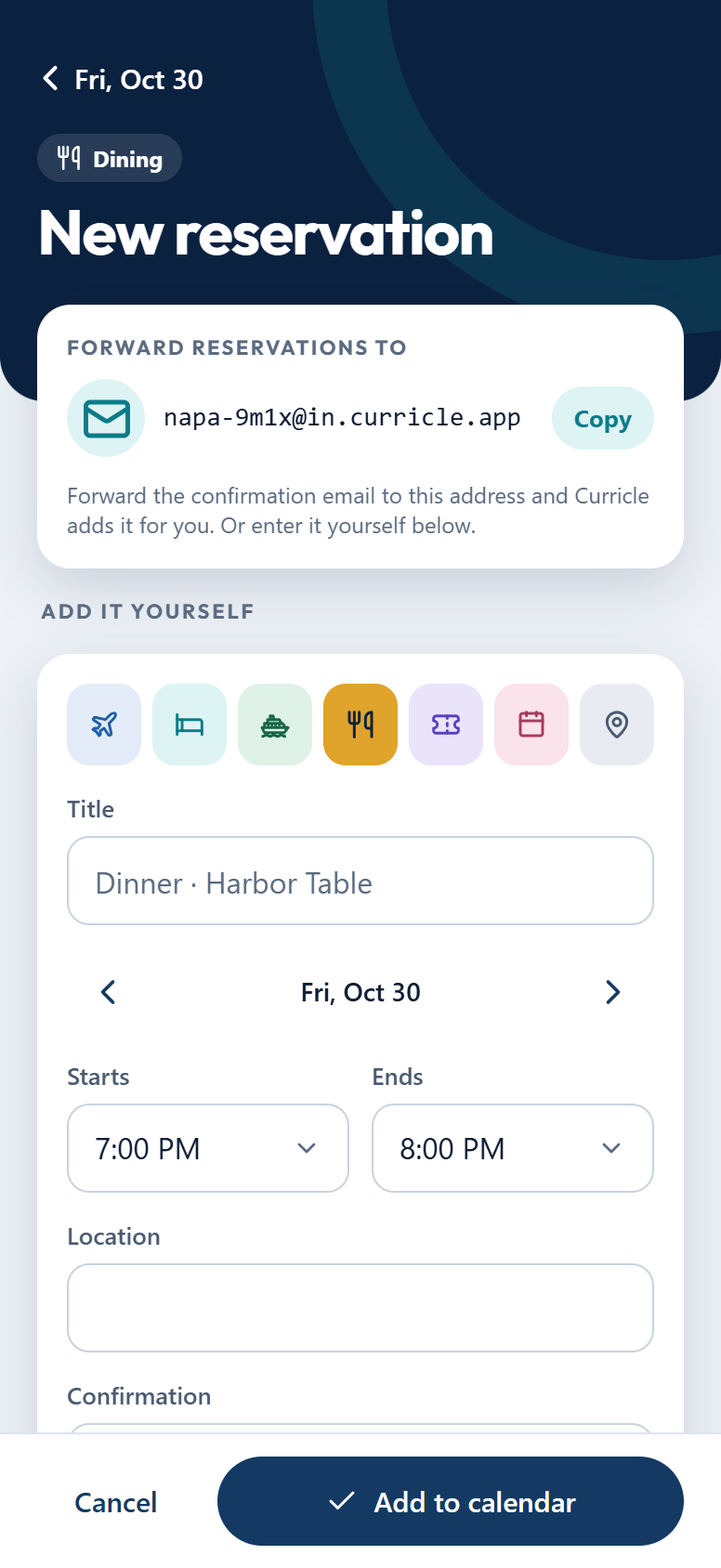
6. No email? Add it yourself
Bookings made by phone or in person go in by hand: pick the type, give it a title, choose the day and times, and add the place and confirmation number if you have them.
The forwarding address stays at the top as a reminder that forwarding is usually faster.
Tip: if a confirmation keeps its details behind a link, forward it anyway. When Curricle can’t read it, it replies with what to do, and you can paste the details into your reply.
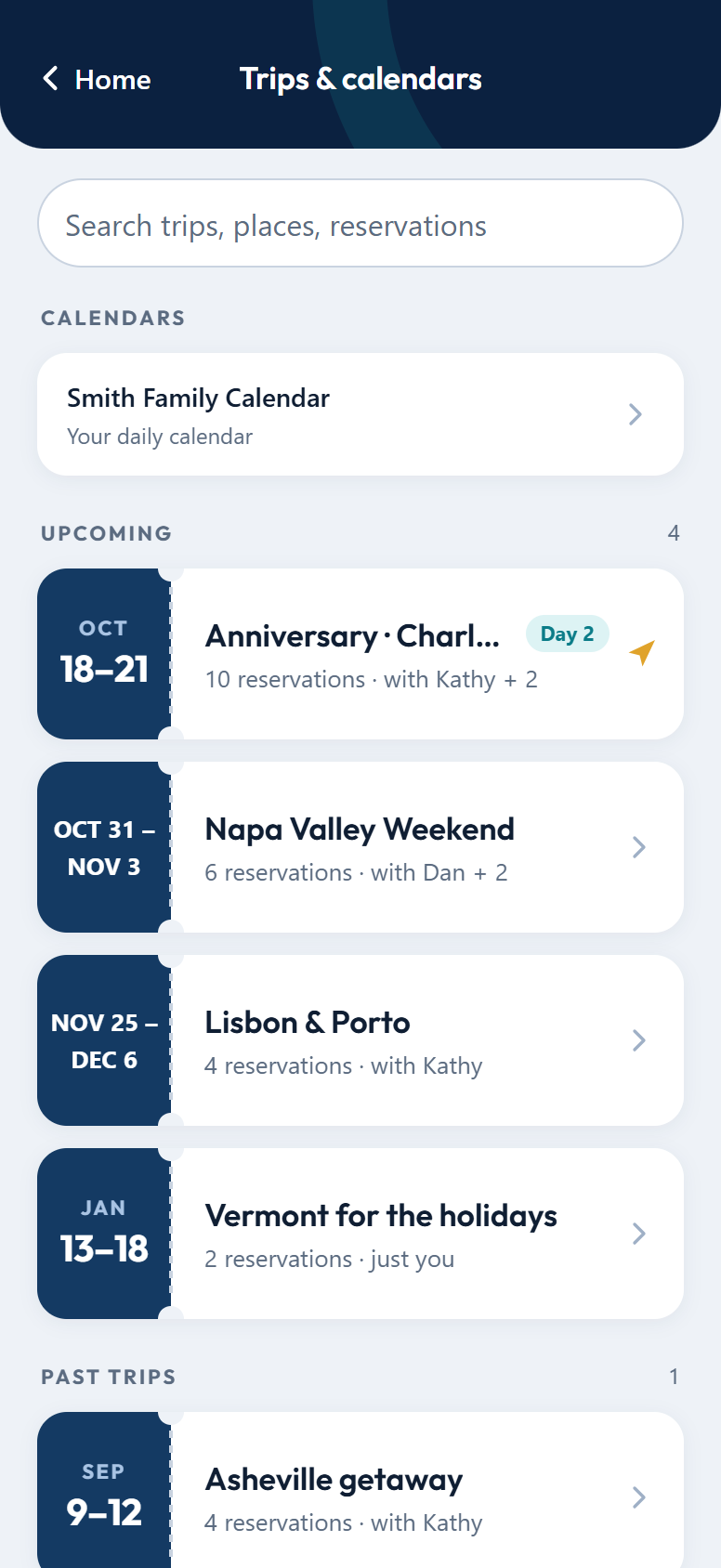
7. Find any trip or reservation
All trips on the home screen lists every calendar: your daily calendars, upcoming trips and past trips.
Search looks through trip names, places and reservations, so “Lisbon”, “FIG” or a hotel name all work.
Tip: past trips stay here, so last year’s restaurant or hotel is easy to find again.
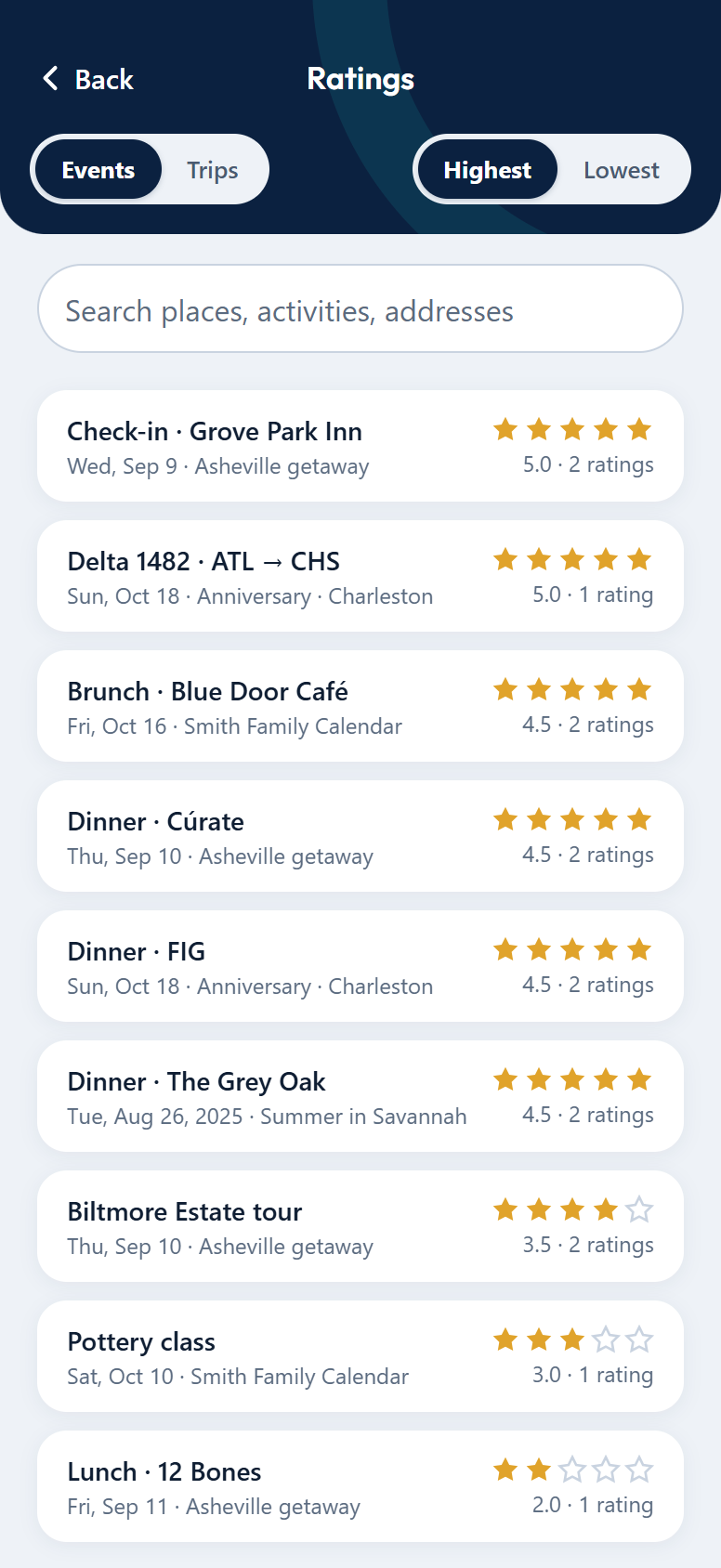
8. Rate what you loved, and what you didn’t
After a reservation, rate it with up to five stars. Everyone on the trip can rate, and Curricle shows the average.
The Ratings screen, behind the star on the home screen, lists them by Events or Trips, highest or lowest first, and searches by place or activity.
Tip: rate right after each dinner or tour. Next time someone asks where you ate in Asheville, the answer is one search away.
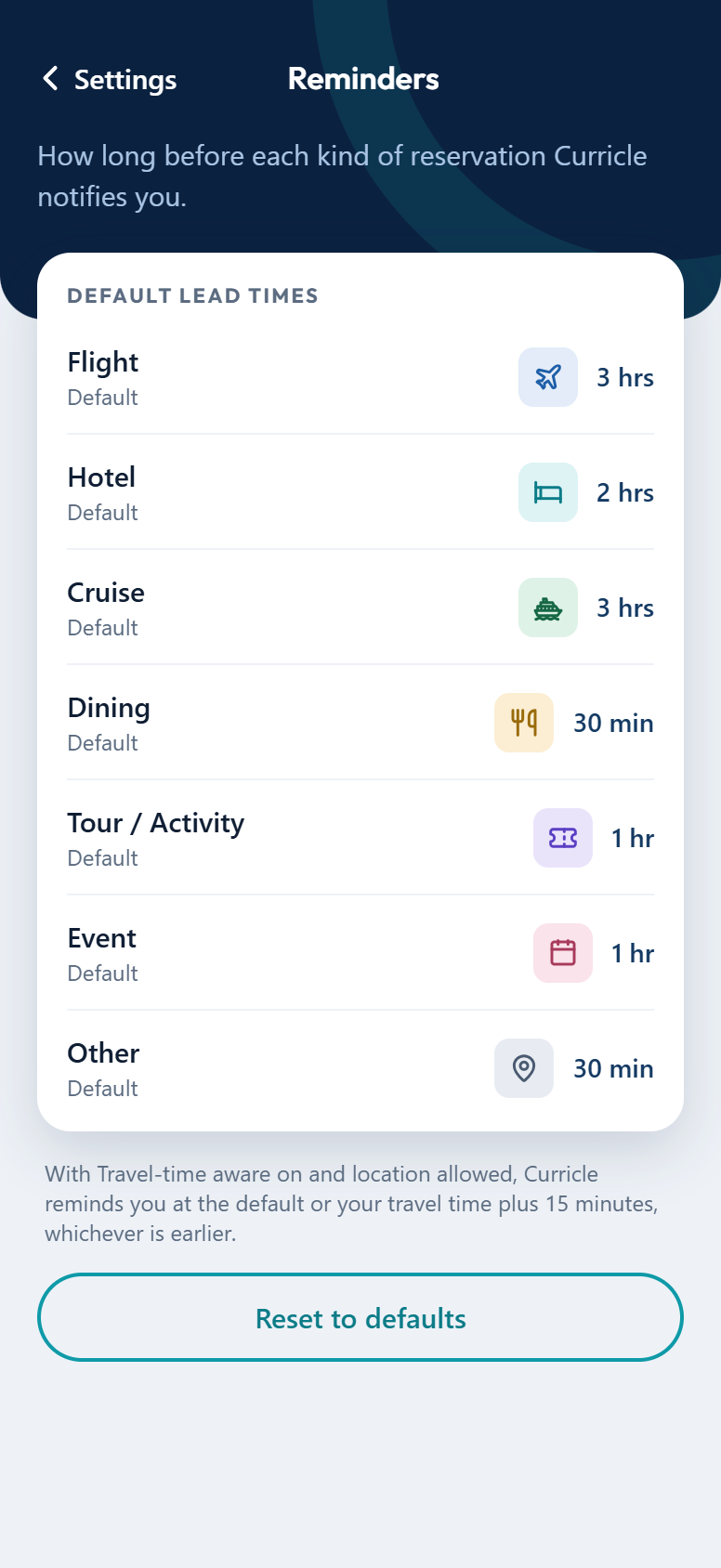
9. Reminders that fit each kind of plan
Settings → Reminders sets how early you’re notified for each kind of reservation: three hours before a flight, thirty minutes before dinner, and so on.
With travel-time aware on and location allowed, Curricle reminds you early enough to get there: at the default, or your travel time plus 15 minutes, whichever is earlier.
Tip: change a single reservation’s reminder on its details screen and leave the defaults alone.
Five habits that get the most out of Curricle
- Create the trip first, then book. Every confirmation can go straight to the trip’s address.
- Forward as soon as you book. It takes seconds and the trip is always complete.
- Save each trip’s address as a contact so you never have to look it up.
- Give your co-planners Add access so their bookings show up too.
- Rate as you go. Your ratings become your own travel guide for next time.
New to Curricle? The welcome tour covers the basics in a few screens, and How it works walks through the whole idea.
Put every confirmation in one calendar
Forward your bookings to Curricle and share the plan with everyone on the trip.