
Use your daily calendar for dinners, car service and doctor appointments
Trips aren't the only plans with confirmations. Keep everyday reservations and appointments in one daily calendar you share with your household.
Last updated October 26, 2026
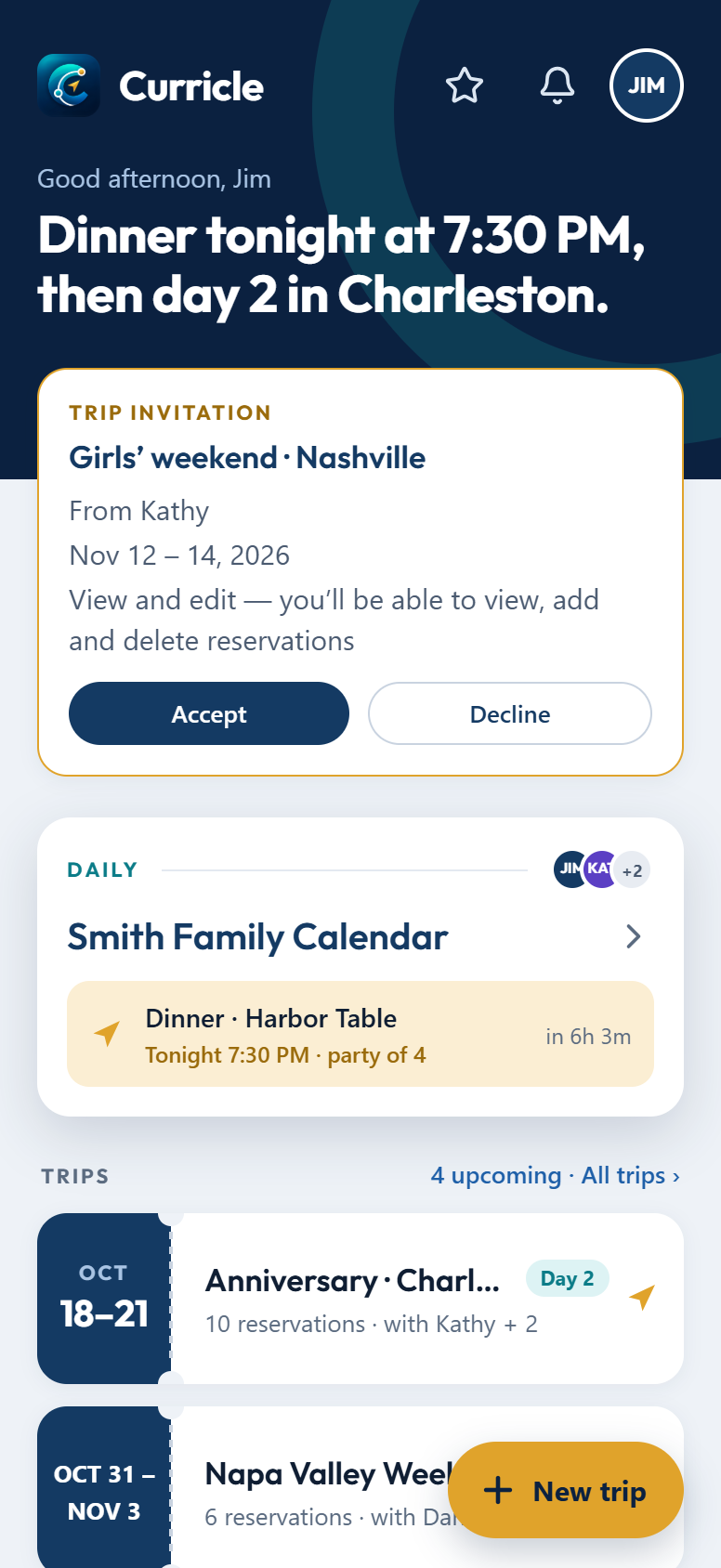
Trips get a lot of attention, but most confirmations arrive on ordinary weeks: a table for Friday night, a car to the airport, a dentist appointment, a kid’s swim class. Curricle’s daily calendar is where those go. Every account has one, it sits at the top of the home screen, and it works just like a trip: forward the confirmation, and it shows up on the right day with a reminder.
What belongs on the daily calendar
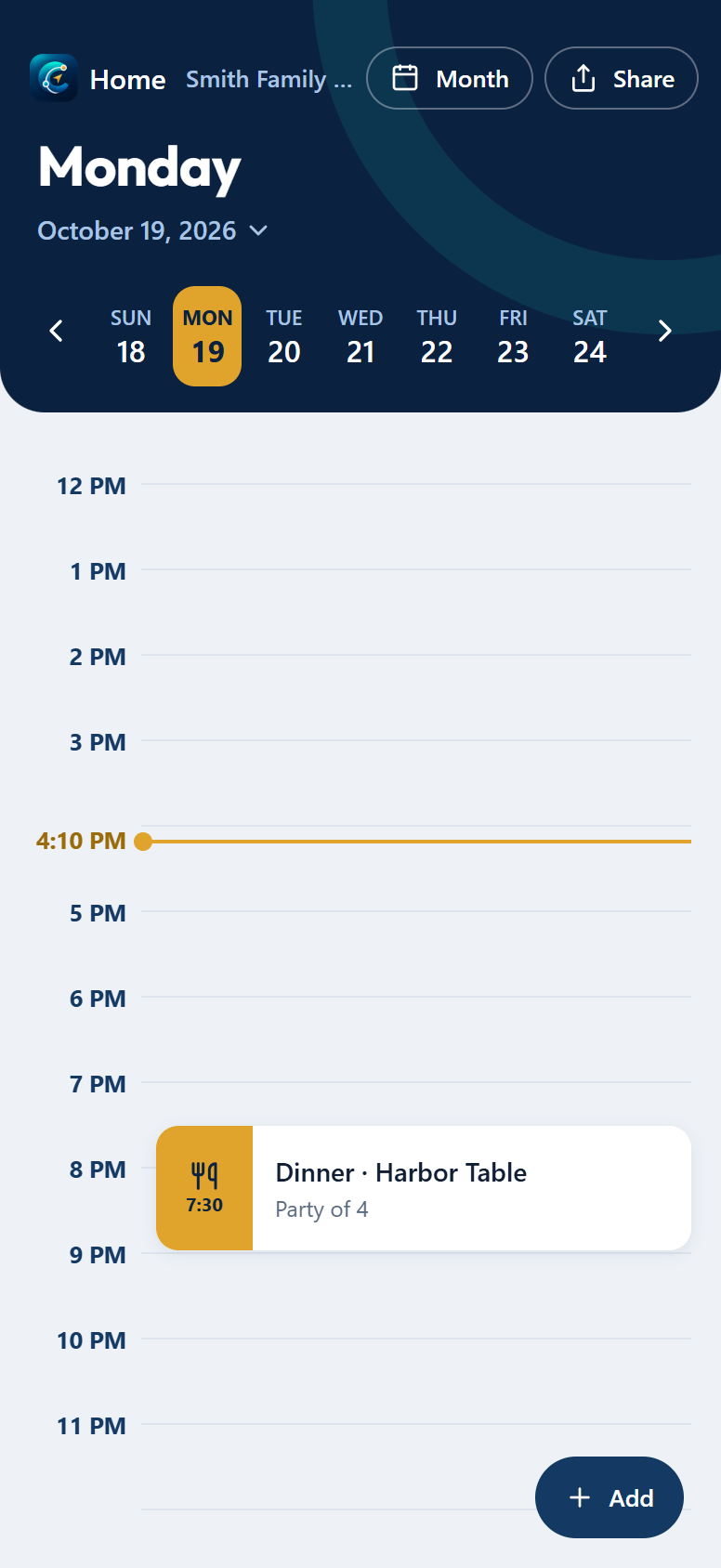
Anything with a time and a place that isn’t part of a trip. Pick the type that fits when you add it by hand; forwarded confirmations are sorted for you.
| Plan | Type |
|---|---|
| Dinner, brunch and lunch reservations | Dining |
| Car service, airport transfers, scheduled rides | Event |
| Doctor, dentist and vet appointments | Event |
| Classes, lessons, tastings, kids’ activities | Tour / Activity |
| Concerts, games, shows | Event |
The home screen shows the next thing on your daily calendar and how long until it starts, so the day’s plan is the first thing you see.
Forward the confirmation, skip the typing
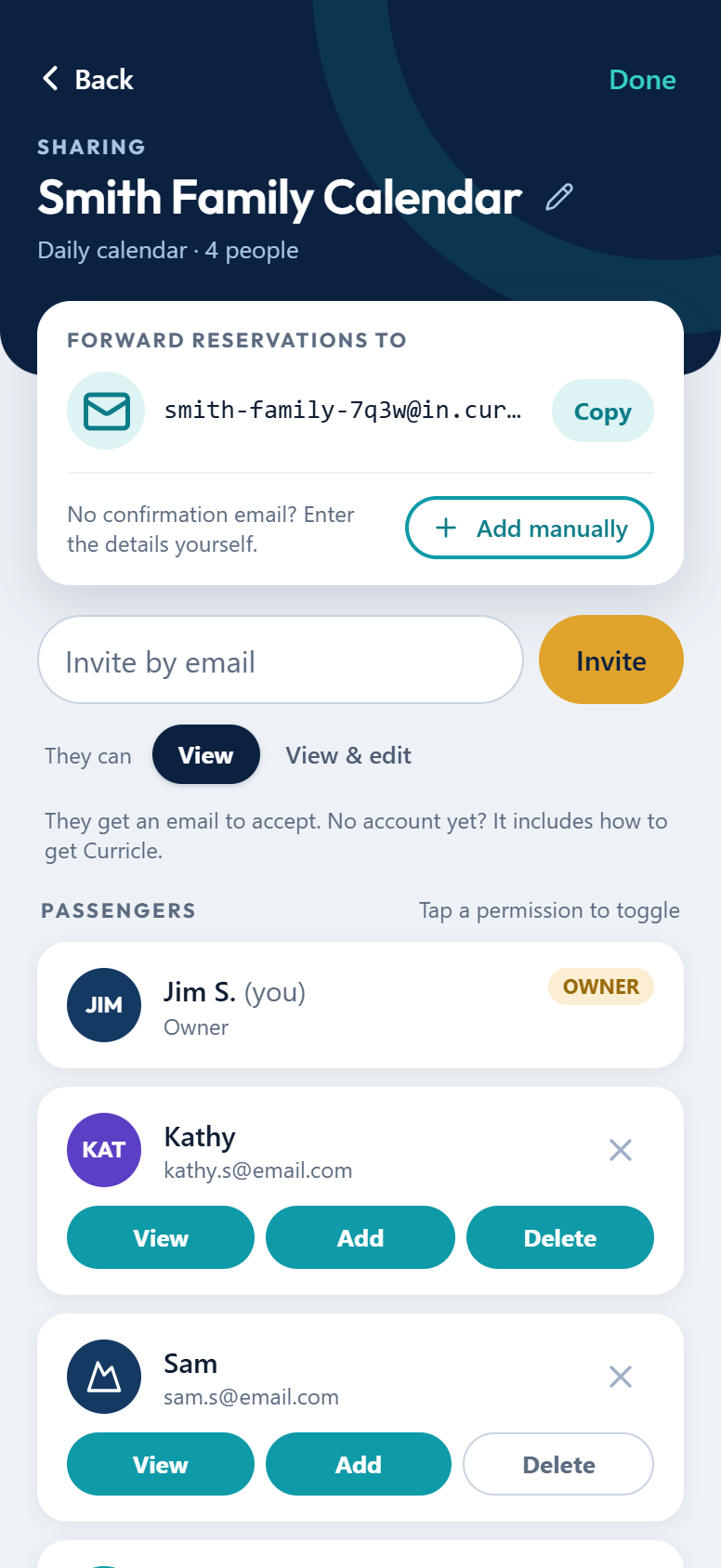
Restaurant bookings, ride services, clinics and most appointment systems send a confirmation email. Forward it to your daily calendar’s address and Curricle adds it, with the time, the place and the confirmation number.
- Find the address on the daily calendar’s Share page and tap Copy. Save it as a contact, such as “Curricle Daily”, so your email app suggests it.
- No email? Booked by phone, or at the front desk? Tap Add and enter it yourself.
- Details behind a patient portal or a link? Forward it anyway. If Curricle can’t read it, it replies and tells you what to paste.
See the whole month
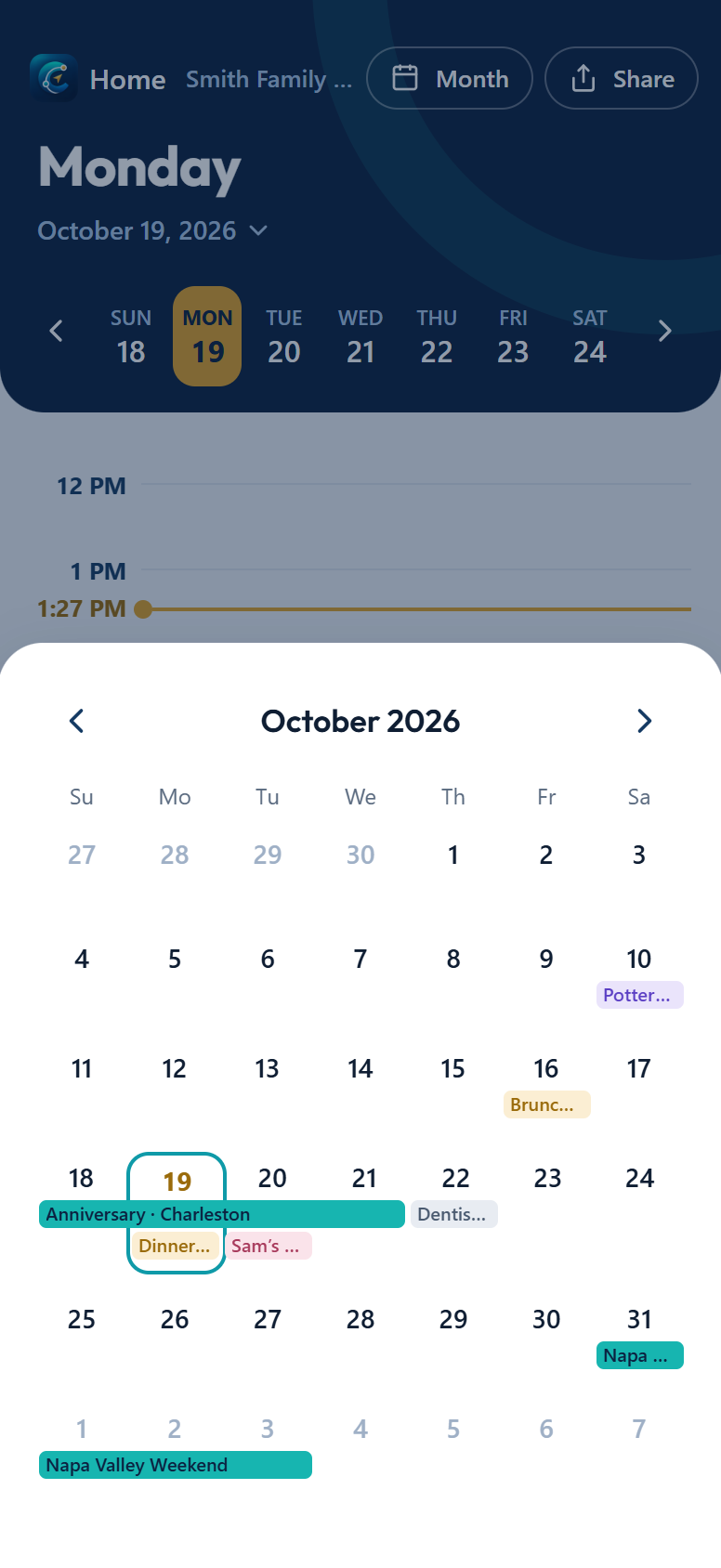
Tap Month to see everything at once. Appointments are tinted by type, and trips show as bars across their days, so you can spot a dentist appointment that falls on the morning you fly out.
Tap any day to go to it. When today has nothing on it, the daily calendar opens on the month by itself.
Share it with your household
A shared daily calendar is the family fridge calendar that updates itself.
- Invite your partner or the other adults with View & edit, so they can forward their own bookings too.
- Invite older kids or a babysitter with View, so they know when the car is coming without being able to change anything.
- Rename it on the sharing page, for example “Smith Family Calendar”.
If someone shares their daily calendar with you, say your parents, it appears under All trips on the home screen, next to your own.
Good to know: everyone you share the daily calendar with sees every item on it, including the title and notes. Use titles you’re comfortable with, such as “Dr. appointment”, and keep private details out of the notes.
Reminders that leave time to get there
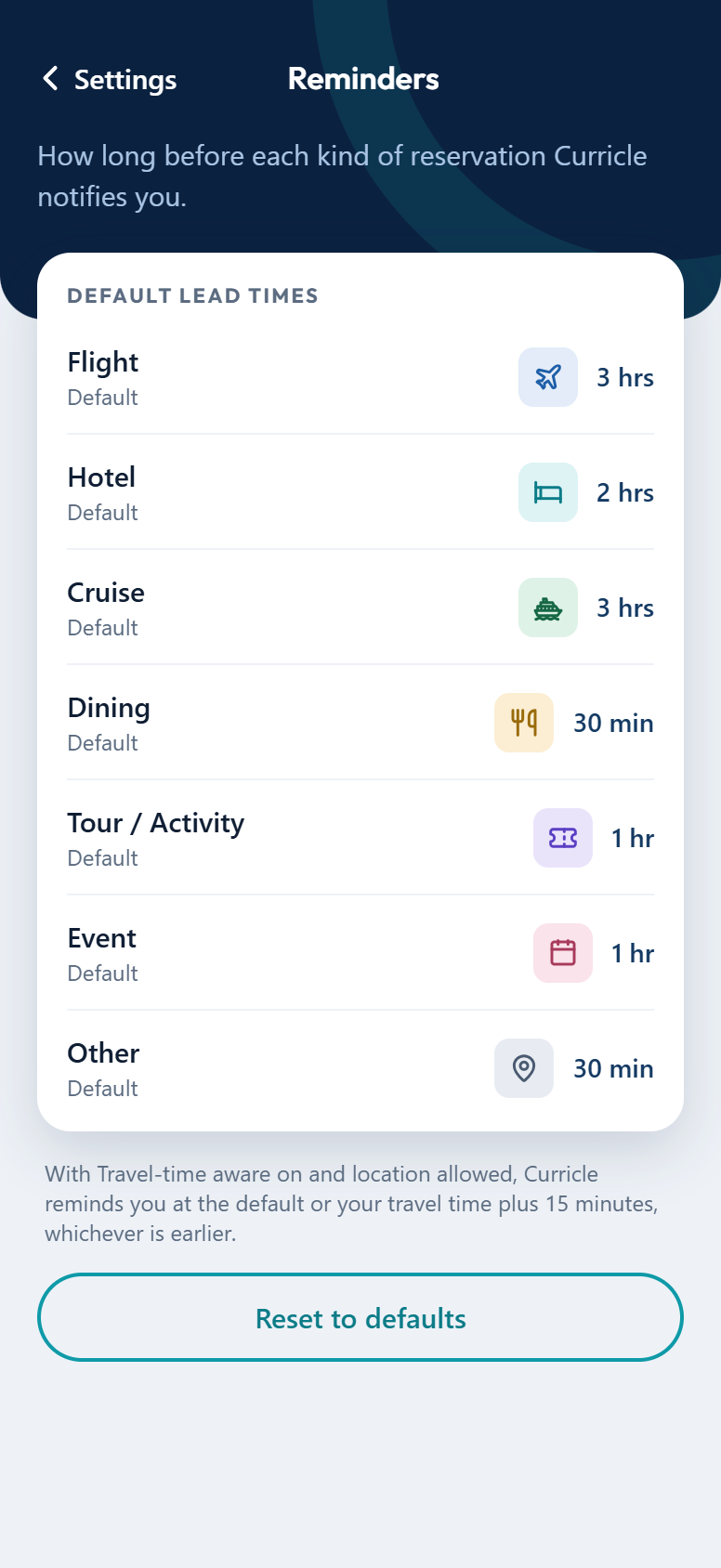
Each type has its own default reminder, such as 30 minutes before dinner. Change the defaults in Settings → Reminders.
For appointments across town, turn on travel-time aware. With location allowed, Curricle reminds you at the default or your travel time plus 15 minutes, whichever is earlier.
Tip: for the doctor’s office that wants you there 15 minutes early, open the appointment and set its own reminder. The defaults stay as they are.
Everyday habits that pay off
- Forward the confirmation the moment it arrives. It takes seconds, and nobody has to ask “what time is that again?”
- Give Add access to everyone who books. Their reservations land on the same calendar.
- Keep travel on trip calendars. Use the daily calendar for life at home and a trip for each getaway, so each stays easy to read.
- Rate the restaurants. After a few months, your ratings are your own list of where to go back.
Next: save each calendar’s address as a contact so forwarding is a two-tap job.
Put every confirmation in one calendar
Forward your bookings to Curricle and share the plan with everyone on the trip.