
Give each trip an email alias so forwarding takes two taps
Save each Curricle calendar's forwarding address as a contact named after the trip, then forward confirmations by typing the trip's name.
Last updated October 19, 2026
Every Curricle calendar has its own forwarding address, such as napa-9m1x@in.curricle.app. It’s unique to the trip, which is what makes forwarding work, but nobody wants to type it. The fix takes a minute per trip: save the address as a contact with the trip’s name. From then on, you forward a confirmation by typing “Napa” in the To field and picking the suggestion.
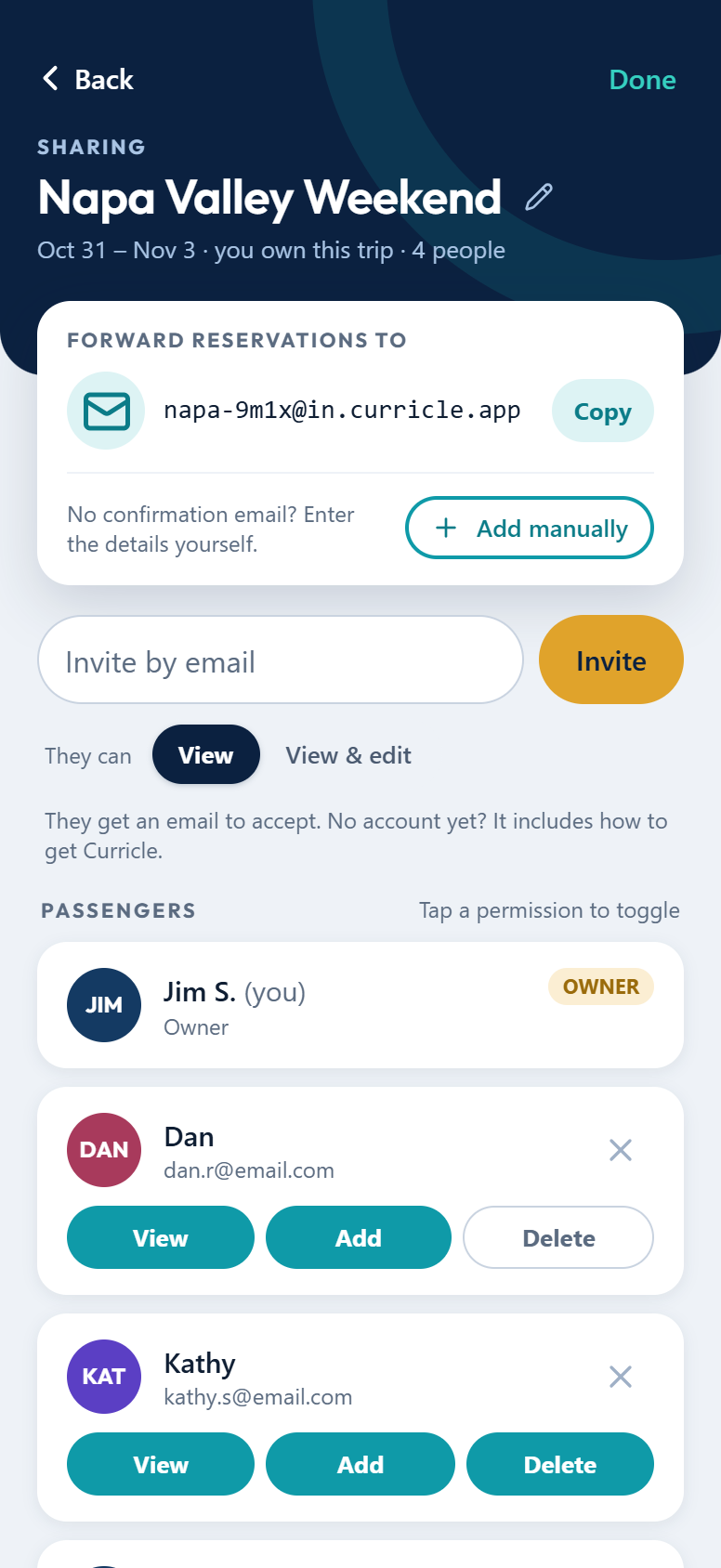
Step 1: Copy the trip’s address
Open the trip in Curricle and tap Share. The address is at the top under Forward reservations to. Tap Copy.
It’s also on the sharing page that opens right after you create a trip, and at the top of every new reservation.
Your daily calendar has an address too. Give it an alias the same way.
Step 2: Pick a naming pattern
Start every alias with the same word, so typing that word lists all of them:
| Calendar | Alias name |
|---|---|
| Napa Valley Weekend | Curricle Napa 2026 |
| Lisbon & Porto | Curricle Lisbon 2026 |
| Your daily calendar | Curricle Daily |
Typing “Curricle” shows every trip, and typing “Napa” goes straight to one. Adding the year keeps next year’s trip to the same place apart.
Step 3: Save it as a contact
Gmail on the web or Android
- Open contacts.google.com, or the Contacts app on Android, and choose Create contact.
- Type the alias name, such as “Curricle Napa 2026”, in the name field.
- Paste the address in Email and tap Save.
iPhone Mail
- Open the Contacts app and tap +.
- Type the alias name as the first name, paste the address under add email, and tap Done.
Outlook
- Open People, or Contacts in the Outlook app, and choose New contact.
- Enter the alias name and paste the address in the email field, then Save.
Your email app now suggests the trip as soon as you type a few letters of its name.
Step 4: Forward each confirmation
When a confirmation arrives, tap Forward, type the trip’s name in To, pick the alias and send. You don’t need to write anything.
- Forward confirmations one at a time. Curricle reads the email you forward, along with its PDF and calendar attachments. Several emails bundled as attachments into one message aren’t read.
- One email can hold several bookings. A round-trip flight or a two-night stay becomes the right number of entries.
- Forward from any of your inboxes. Add your other addresses in Curricle under Settings → Email addresses, so forwards from your work account count as yours. Curricle can then reply there too if it can’t read something.
Share the alias with the group
Everyone you’ve given Add access can forward to the same address. Send them the address, or ask them to copy it from the trip’s Share page, so they can save their own alias.
Treat the address like a private link: anything sent to it goes onto the calendar. Share it only with people you’d let add reservations.
Good to know
- Automatic forwarding rules aren’t supported. Gmail asks the receiving address to confirm before it auto-forwards, and a Curricle address can’t do that. Forwarding by hand takes two taps once the alias exists.
- Tidy up after the trip. Delete the contact when you’re home, so last year’s trip doesn’t show up in suggestions. If you delete a trip in Curricle, its address stops accepting email.
Next: see how a whole trip looks in Curricle, screen by screen.
Put every confirmation in one calendar
Forward your bookings to Curricle and share the plan with everyone on the trip.